Extreme Soccer PC System Requirements
Official Steam OS notes, controller support, and modern Windows tips for Extreme Soccer owners.
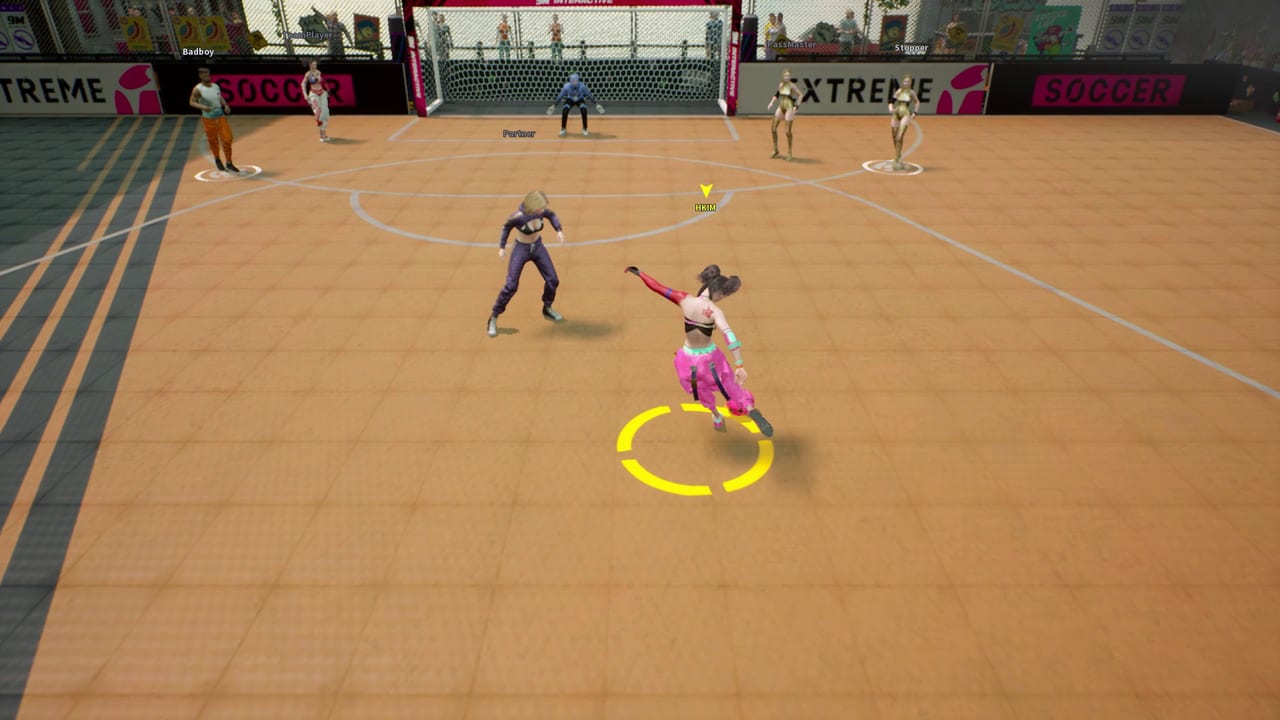
Extreme Soccer (Steam app 1477730) is a lightweight online 3v3 street soccer client by 9M Interactive. The Steam store lists a short system-requirements block rather than a long CPU/GPU spreadsheet. This page restates that official OS baseline, explains what full controller support means in practice, and adds owner-focused tips for modern Windows 10/11 PCs after the title’s Early Access launch and later store delist. Confirm ownership first on Steam Status if the Buy button is gone — purchase has been disabled since December 17, 2021 while library owners can still launch.
Official Steam requirements (as listed)
Steam publishes the same OS line for both minimum and recommended tiers:
| Tier | Store listing |
|---|---|
| Architecture | Requires a 64-bit processor and operating system |
| Minimum OS | Windows 7, 8, 8.1, 10 x64 |
| Recommended OS | Windows 7, 8, 8.1, 10 x64 |
That is the complete hardware matrix on the product page. The store does not publish separate processor, memory, graphics, DirectX, or storage numbers for Extreme Soccer. Do not invent RAM or GPU floors; treat the 64-bit Windows OS line as the only hard store claim, then use common sense for a compact multiplayer sports client from 2021 Early Access.
Steam also surfaces a client-side note that, starting January 1, 2024, the Steam Client itself only supports Windows 10 and later. Even if Extreme Soccer’s older OS string still mentions Windows 7/8/8.1, modern owners should plan around 64-bit Windows 10 or Windows 11 because the launcher platform moved forward.
Early Access context for “requirements”
Extreme Soccer entered Early Access on February 4, 2021 with five playable characters, online 3v3, physics walls, outfits, and twelve Steam achievements. Early Access games can ship with thin hardware tables and then never expand them. Extreme Soccer’s storefront later disabled purchase (December 17, 2021) while remaining Early Access in public messaging. Practically, requirements advice is about getting a stable launch and online session on current Windows, not chasing a 1.0 optimization pass that never arrived as a marketed finish line.
For the gameplay package those requirements unlock, use Guides, Controls, Players, and the Review Hub.
Supported languages
Steam lists a broad interface language matrix for Extreme Soccer — about 15 options including English, French, German, Spanish, Portuguese-Brazil, Japanese, Korean, Simplified Chinese, Traditional Chinese, and others. Verify the current list on the store page because regional builds can differ. The underlying game is still the same delisted 3v3 Early Access build; language support covers menus and UI, not a separate content patch.
Full controller support
Steam lists full controller support. That is a feature flag, not a separate GPU requirement. It means pad play is a first-class path for movement, pass, shoot, tackle, sprint, and character skills. Many owners will prefer a gamepad for street-court jockeying and wall exits.
Practical controller checklist:
- Connect the pad before launching Steam if possible.
- Confirm Windows sees a working gamepad.
- Launch Extreme Soccer and verify in-match stick response.
- Keep a keyboard nearby for rare menu focus quirks in older Early Access UIs.
- Recheck bindings with the Controller Controls guide and the Control Cheatsheet.
Keyboard players should start from Keyboard Controls instead. Requirements do not force a pad; they simply confirm pad support exists.
Practical tips for Windows 10/11 owners
Modern PCs that handle other Steam multiplayer titles usually handle Extreme Soccer. Still run a short health pass before inviting friends:
- Install / verify — Use Steam’s verify integrity of game files if the client fails to start after a Windows update.
- Run 64-bit — Stay on a 64-bit OS install matching the store line.
- GPU drivers — Update graphics drivers through the vendor tool if you see hitching on the street court overlays.
- Fullscreen vs borderless — If alt-tabbing freezes the lobby, try the alternate window mode once and retest.
- Overlay conflicts — Temporarily disable extra overlays (recording, RGB, third-party FPS) if launch hangs.
- Power plan — On laptops, use a higher performance plan during matches so thermal throttling does not feel like input lag.
- Storage — Keep the install on a healthy drive with free space; this is a small sports client, not a 100 GB sim, but fragmented or nearly full disks still cause odd Steam update failures.
If the game launches but online play fails, the bottleneck is usually networking or population, not a missing VRAM number. See the networking section below and the ownership notes on Steam Status.
Networking needs for online PvP
Extreme Soccer is built around online multiplayer PvP. Local-only career depth is not the product. System readiness therefore includes network readiness:
- Stable broadband with low packet loss beats a headline download-speed number.
- Wired Ethernet is kinder than congested Wi-Fi when you are timing wall banks and assisted passes.
- Allow Extreme Soccer / Steam through Windows Firewall if first-time launch prompts appear.
- Close bandwidth-heavy downloads during ranked-feeling party nights.
- Expect queue quality to vary; a delisted Early Access title can have sparse lobbies even on a perfect PC.
A machine that meets the OS line can still deliver a poor night if matchmaking finds nobody. Pair hardware checks with social planning: invite owners from your friends list, then use Team Play and Character Compare once everyone is in.
Steam Deck status
Steam Deck compatibility for Extreme Soccer is unknown on this wiki. The store page does not give this project a clear, evergreen Deck Verified story to quote with confidence, and the title’s quiet post-delist life means community Deck reports are sparse. If you try Deck play, treat it as an experiment: verify Proton/SteamOS behavior yourself, confirm controller mapping in-game, and keep expectations modest for online population. Do not assume desktop Windows tips transfer one-to-one to Deck sleep/resume quirks.
What “can run it” still does not solve
Meeting requirements does not restore store purchase, expand the five-character roster, or refill servers. Those are product and community facts covered on Steam Status and judged on the Review Hub. Requirements only answer: “Can my PC launch the owner build and reach online play?”
Also do not confuse this Steam SKU with the sibling mobile title Extreme Football. Mobile touch performance is a different platform story; see the comparison page from the Wiki Hub once you need that context.
Pre-session owner checklist
- Confirm Extreme Soccer is in your Steam library (Steam Status).
- Boot once alone before friends arrive.
- Validate controller or keyboard via Controls.
- Check firewall / network if matchmaking never populates.
- Pick roles with Players or Character Compare.
- Optionally set an achievement target from Achievements.
Related pages
- Updates Hub — parent category for status and milestones
- Steam Status — delist, library launch, Early Access history
- Controls — input fundamentals after a clean launch
- Review Hub — whether another session is worth your evening
- Wiki Hub — official Steam page and support@nine-m.com
Extreme Soccer’s published PC bar is intentionally short: 64-bit Windows 7/8/8.1/10, with modern owners effectively living on Windows 10/11 through the Steam Client’s own support window, plus full controller support and an online PvP dependency. Get the OS and network healthy, then spend your attention on walls, roles, and who still owns the game — not on chasing phantom GPU charts the store never printed.
Frequently Asked Questions
Quick answers to the most common questions.
What are Extreme Soccer’s official Steam system requirements?
Steam lists a 64-bit processor/OS requirement and Windows 7, 8, 8.1, or 10 x64 for both minimum and recommended. It does not publish separate CPU, RAM, or GPU numbers on the store page.
Will Extreme Soccer run on Windows 11?
Modern owners should use 64-bit Windows 10 or 11. The store’s older OS string still mentions Windows 7/8/8.1, but the Steam Client itself moved to Windows 10+ support in 2024.
Does Extreme Soccer support controllers?
Yes. Steam lists full controller support. Confirm your pad in Windows, then use the Controller Controls page for in-match habits.
Is Extreme Soccer verified on Steam Deck?
Compatibility is unknown on this wiki. Treat Deck play as unverified experimentation rather than a promised target platform.
My PC meets the OS line but online play fails — why?
Online PvP needs working network access and available players. Check firewall and connection quality, then read Steam Status for delist and population context.
Where should I go after confirming the game launches?
Continue to Controls and Guides for play, or Review and Steam Status if you are deciding whether another session is worth it.